Storage Devices (HDD, SSD, Flash Drives)
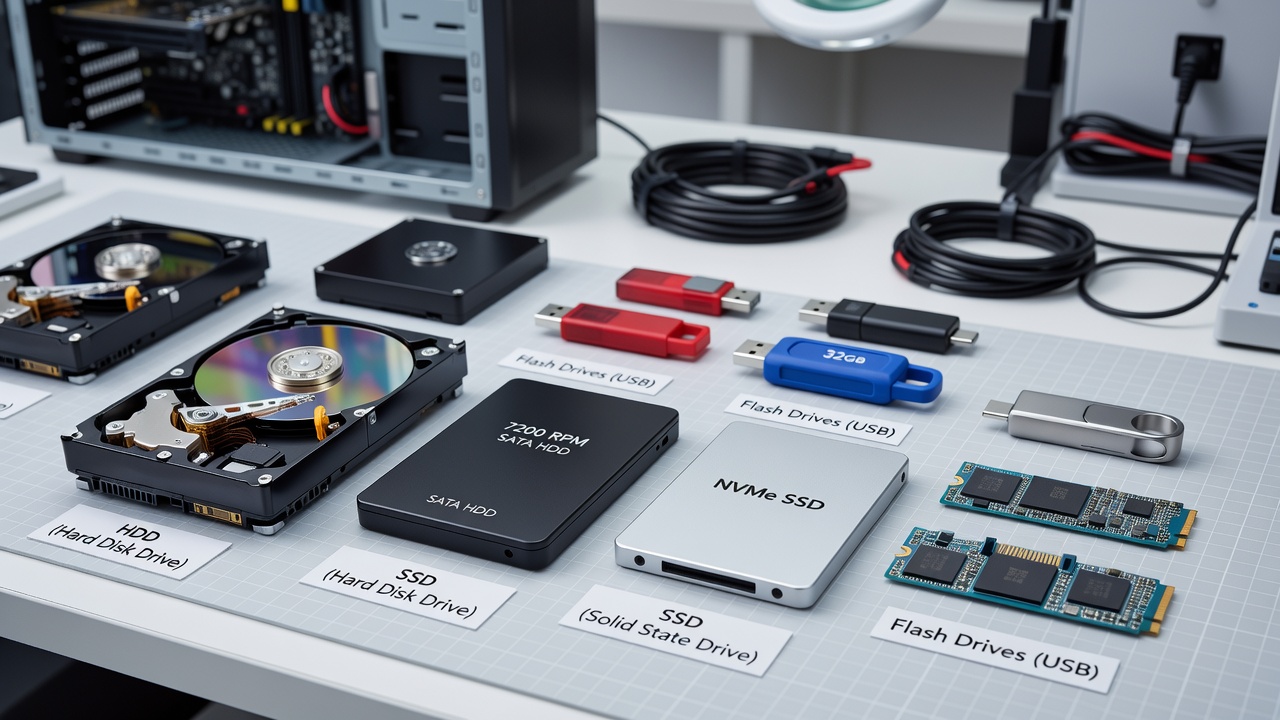
Week 8: Storage Devices
Hard Disk Drives, Solid-State Drives, Flash Drives, and Memory Cards
Table of Contents
Introduction to Storage Devices
Storage devices are computer components used to save data permanently or semi-permanently. Unlike RAM, which loses data when power is turned off, storage devices keep files, programs, operating systems, photos, videos, and documents even after the computer is shut down.
Common storage devices include:
- Hard Disk Drives, HDDs
- Solid-State Drives, SSDs
- USB Flash Drives
- Memory Cards, such as SD and microSD cards
1. Hard Disk Drive, HDD
What is an HDD?
A Hard Disk Drive, HDD, is a traditional storage device that stores data using magnetism. It contains circular disks called platters. These platters spin at high speed while a read/write head moves across them to read or write data.
Common HDD speeds include:
- 5400 RPM: commonly used in laptops and external drives.
- 7200 RPM: commonly used in desktop computers.
RPM means Revolutions Per Minute. It shows how many times the disk spins in one minute.
Illustration of an HDD
How HDDs Work
- Data is stored magnetically on spinning platters.
- The platters rotate at high speed.
- The read/write head moves to the correct location.
- The head reads existing data or writes new data.
Advantages of HDDs
- Low cost per gigabyte.
- Available in large capacities such as 1TB, 2TB, 4TB, 8TB, and above.
- Good for storing videos, photos, backups, and archives.
- Useful for desktop computers, servers, and CCTV systems.
Disadvantages of HDDs
- Slower than SSDs.
- Mechanical parts can be damaged by drops or physical shock.
- Produces noise and heat.
- Uses more power than SSDs.
- Not ideal for fast booting or gaming.
Common Uses of HDDs
- Large file storage
- Computer backups
- Media libraries
- Desktop computer storage
- Network attached storage, NAS
- CCTV and surveillance storage
2. Solid-State Drive, SSD
What is an SSD?
A Solid-State Drive, SSD, is a modern storage device that uses flash memory chips to store data. Unlike an HDD, an SSD has no moving parts. This makes SSDs faster, quieter, and more durable.
Illustration of an SSD
How SSDs Work
SSDs store data in flash memory cells. These memory cells hold electrical charges that represent data. The SSD controller manages how data is saved, retrieved, organized, and protected.
An SSD usually contains:
- NAND flash memory chips for storing data.
- Controller chip for managing data operations.
- Cache or DRAM in some models for better performance.
- Firmware that controls the operation of the drive.
Advantages of SSDs
- Very fast booting and loading times.
- No moving parts.
- Silent operation.
- More durable and shock-resistant than HDDs.
- Lower power consumption.
- Better for laptops, gaming, and multitasking.
Disadvantages of SSDs
- Higher cost per gigabyte than HDDs.
- Limited write endurance, although modern SSDs last for many years.
- Data recovery can be more difficult if the drive fails.
- Performance may drop when the drive is almost full.
SSD Form Factors and Interfaces
A. 2.5-inch SATA SSD
A 2.5-inch SATA SSD is similar in size to a laptop HDD. It uses SATA data and power cables. It is often used to upgrade older laptops and desktop computers.
Illustration of a 2.5-inch SATA SSD
- Common in older laptops and desktops.
- Easy replacement for laptop HDDs.
- Typical maximum speed is about 500 to 550 MB/s.
- Faster than HDDs but slower than NVMe SSDs.
B. M.2 SATA SSD
An M.2 SATA SSD looks like a small circuit board but still uses the SATA interface. This means it is limited to SATA speeds.
C. M.2 NVMe SSD
An M.2 NVMe SSD is a small stick-like storage device that plugs directly into the motherboard. It uses the PCIe bus, which is much faster than SATA.
Illustration of an M.2 NVMe SSD
| SSD Type | Approximate Speed | Common Use |
|---|---|---|
| SATA SSD | Up to about 550 MB/s | General computer upgrades |
| NVMe PCIe Gen 3 | Up to about 3,500 MB/s | Gaming and modern laptops |
| NVMe PCIe Gen 4 | Up to about 7,000 MB/s | High-performance PCs |
| NVMe PCIe Gen 5 | Can exceed 10,000 MB/s | Professional workloads and advanced systems |
3. Flash Drives and Memory Cards
USB Flash Drives
A USB flash drive, also called a pen drive or thumb drive, is a small portable storage device that uses flash memory. It connects to a computer through a USB port.
Illustration of a USB Flash Drive
Uses of USB Flash Drives
- Transferring files between devices.
- Saving school or office documents.
- Creating bootable operating system installers.
- Carrying presentations.
- Sharing music, photos, and videos.
- Temporary backup of small files.
Advantages
- Small and portable.
- Easy to use.
- Compatible with many devices.
- No external power required.
- Available in many capacities such as 16GB, 32GB, 64GB, 128GB, and above.
Disadvantages
- Easy to lose because of small size.
- Usually slower than internal SSDs.
- Can be corrupted if removed during file transfer.
- Limited write endurance.
- Can spread malware if used on infected computers.
Memory Cards
Memory cards are small flash storage devices used in cameras, phones, tablets, drones, dash cameras, and other portable devices.
Illustration of SD and microSD Cards
Common Types of Memory Cards
- SD cards
- microSD cards
- CompactFlash cards
- CFexpress cards
Memory Card Speed Classes
| Marking | Meaning |
|---|---|
| Class 10 | Minimum 10 MB/s write speed |
| UHS-I | Faster bus interface |
| UHS-II | Higher speed, often used in professional cameras |
| V30 | Minimum 30 MB/s video write speed |
| V60 | Minimum 60 MB/s video write speed |
| V90 | Minimum 90 MB/s video write speed |
| A1 / A2 | Better performance for running apps |
Comparison of HDD, SSD, and Flash Storage
| Feature | HDD | SSD | USB Flash Drive / Memory Card |
|---|---|---|---|
| Technology | Magnetic platters | NAND flash memory | NAND flash memory |
| Moving Parts | Yes | No | No |
| Speed | Slow to moderate | Fast to very fast | Varies |
| Durability | Lower, sensitive to shock | Higher | Moderate |
| Noise | Produces noise | Silent | Silent |
| Power Use | Higher | Lower | Very low |
| Cost per GB | Cheapest | More expensive | Varies |
| Best Use | Large storage and backups | Operating system, apps, and games | Portable file transfer |
Speed Comparison
General speed order: HDD is usually the slowest, SATA SSD is much faster, and NVMe SSD is the fastest common consumer storage type.
Choosing the Right Storage Device
| Need | Best Choice |
|---|---|
| Fast booting and quick applications | SSD |
| Best performance | NVMe SSD |
| Low-cost large storage | HDD |
| Backing up many files | HDD or external SSD |
| Portable file transfer | USB flash drive |
| Camera or phone storage | SD or microSD card |
| Gaming | SSD, preferably NVMe |
| Video editing | NVMe SSD |
| Long-term media storage | HDD plus backup |
Operating system and programs → SSD
Large files and backups → HDD
Portable transfer → USB flash drive
Storage Care and Safety Tips
For HDDs
- Avoid dropping or shaking the drive.
- Keep it cool and well-ventilated.
- Do not move external HDDs while they are running.
- Monitor drive health using SMART tools.
- Back up important files regularly.
For SSDs
- Keep 10% to 20% free space when possible.
- Do not defragment SSDs.
- Keep firmware updated when necessary.
- Use TRIM support to maintain performance.
- Back up important data.
For Flash Drives and Memory Cards
- Safely eject before removing.
- Do not remove during file transfer.
- Protect from water, heat, and physical damage.
- Scan for viruses when used on public computers.
- Use trusted brands for important files.
Backup Reminder: The 3-2-1 Rule
A good backup strategy is the 3-2-1 backup rule:
- Keep 3 copies of important data.
- Use 2 different types of storage.
- Store 1 copy in another location, such as cloud storage.
Summary
- HDDs use spinning magnetic disks. They are affordable and offer large storage capacity, but they are slower and more fragile.
- SSDs use flash memory. They are faster, quieter, and more durable, but they cost more per gigabyte.
- NVMe SSDs are the fastest common consumer storage devices because they use the PCIe interface.
- USB flash drives and memory cards are portable flash storage devices used for transferring files and expanding storage.
- The best storage device depends on speed, capacity, cost, portability, and reliability.
HDD SSD NVMe USB Flash Drive Memory Card
Test yourself on Computer Hardware And GSM Repaire
Basic Computer and Phone Troubleshooting Techniques Practice Test
Track your reading & take quizzes
Create free account