Algorithms & Block-Based Programming
Week 7: From Paper Logic to Digital Creation
Algorithms, Flowcharts & Block-Based Programming with Scratch 3.0
Period 1: Computational Thinking — Algorithms & Flowcharts
What Is an Algorithm?
An algorithm is a finite, step-by-step set of unambiguous instructions designed to solve a specific problem or perform a computation. Unlike a vague set of suggestions, a well-formed algorithm has five key traits:
| Characteristic | Meaning | Classroom Example |
|---|---|---|
| Input | Zero or more externally supplied values | A student's two quiz scores |
| Output | At least one result is produced | A calculated average |
| Definiteness | Each step is precise and unambiguous | "Add the numbers," not "Do some math" |
| Finiteness | The process terminates after a limited number of steps | The calculation ends; it does not loop forever |
| Effectiveness | Operations are basic enough to be carried out exactly and in finite time | Addition, comparison, or movement |
Key Insight: A recipe is the classic analogy, but in computing, an algorithm must be so precise that a machine—with no intuition—could execute it successfully.
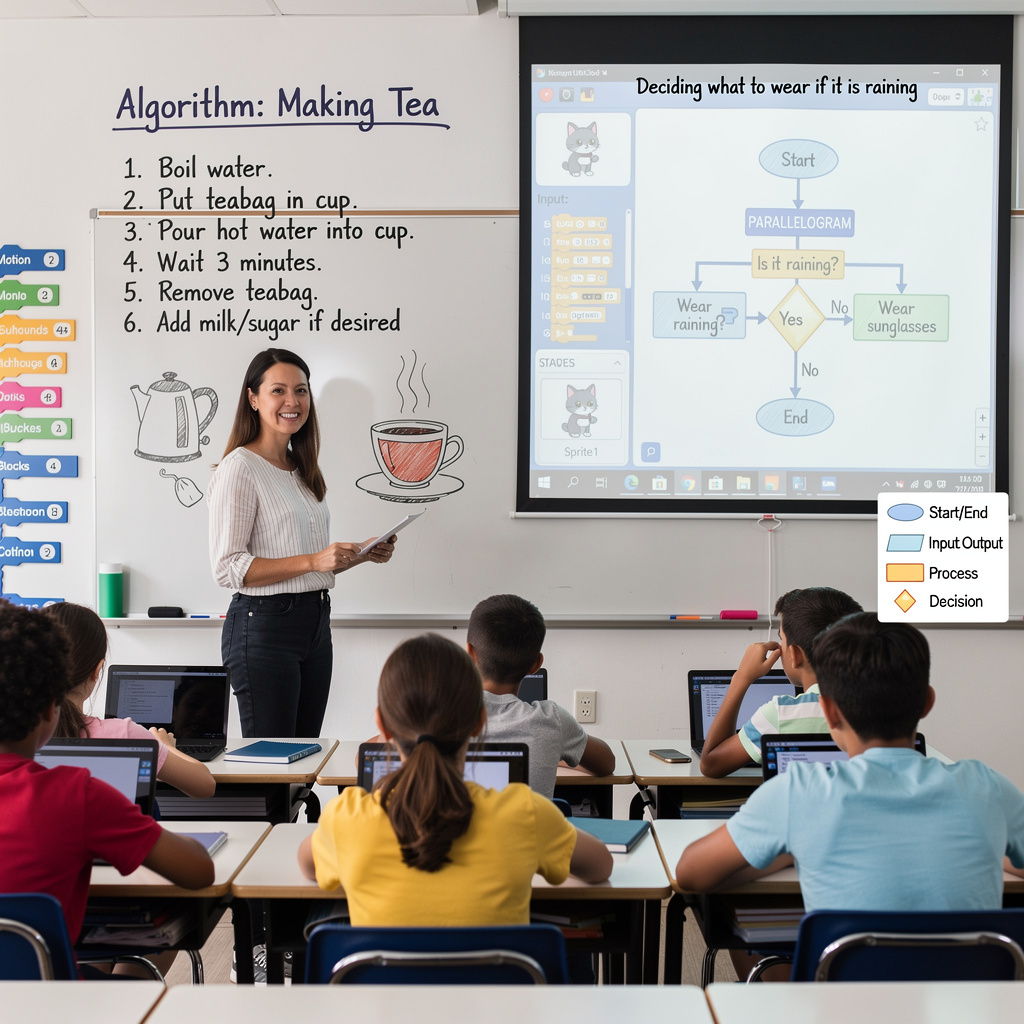
Example Algorithm A — Making Tea (Sequential)
- Boil water in a kettle until it reaches 100 °C.
- Place one teabag into a cup.
- Pour 250 ml of hot water into the cup.
- Steep for exactly 3 minutes.
- Remove the teabag and discard.
- If milk or sugar is desired, add to taste.
- Serve.
Example Algorithm B — Calculating a Class Average (Mathematical)
- Input: Receive five test scores.
- Process: Sum the five scores.
- Process: Divide the sum by 5.
- Output: Display the average.
- Decision: If average ≥ 60, output "Pass"; else, output "Retake."
- End.
Bridging to Code: Pseudocode
Before drawing, students can write pseudocode—a plain-language outline that mirrors programming logic without formal syntax. It serves as the bridge between human thought and machine instructions.
START
  INPUT temperature
  IF temperature < 20°C THEN
    OUTPUT "Wear a coat"
  ELSE
    OUTPUT "Wear sunglasses"
  END IF
END
Visualizing Logic: Flowcharts
A flowchart is a graphical representation of an algorithm. It forces students to externalize decision points and loops that are often hidden in prose.
Standard Flowchart Symbols
| Symbol | Name | Purpose |
|---|---|---|
| Oval | Terminal | Start / End |
| Parallelogram | Input / Output | Receiving data or displaying results |
| Rectangle | Process | Calculations, assignments, or actions |
| Diamond | Decision | Yes / No or True / False branches |
| Circle | Connector | Links flowcharts across multiple pages |
| Arrows | Flow Lines | Indicate direction of control |
Example Flowchart: "What Should I Wear?"
      [Start]
         |
         V
[Input: Is the temp < 20°C?]  <---- (Diamond)
         |            |
      Yes |            | No
         V            V
[Output: Wear]    [Output: Wear]
[a coat]          [sunglasses]
         |            |
         +---->[End]<-----+
Common Pitfalls to Address
- Ambiguity: "Get ready" is too vague. Break it into "Put on shoes," "Grab backpack," etc.
- Missing terminals: Every flowchart must have one Start and at least one End.
- Dead ends: Ensure every decision diamond has both Yes and No arrows leading somewhere.
Practical Activity: Collaborative Flowcharting (25 minutes)
Guided Practice (10 min)
As a whole class, co-create a flowchart for the Making Tea algorithm on the board or a digital whiteboard. Explicitly label each symbol as you draw it.
Independent Practice (15 min)
In pairs, students select one of the following scenarios and draft a flowchart on paper or in a free digital tool (e.g., Draw.io, Lucidchart, or Google Drawings):
- Logging into a school computer.
- Deciding whether to bring an umbrella.
- Calculating whether you have enough money for lunch.
Check for Understanding
Ask students to trade papers and "desk-check" their partner's flowchart by tracing the logic with a finger. Does it reach an End? Is every decision answered?
Period 2: Block-Based Programming — Introduction to Scratch 3.0
What Is Scratch?
Scratch (scratch.mit.edu) is a visual, block-based programming language developed by the MIT Media Lab. Instead of typing syntax-sensitive text, students snap together interlocking puzzle pieces that represent commands. This lowers the barrier to entry and eliminates syntax errors, allowing learners to focus on logic and structure.
Key Insight: Block-based coding is not "training wheels"—it is a legitimate paradigm that teaches the same computational thinking concepts (sequencing, loops, conditionals, events) used in professional text-based languages.
The Scratch 3.0 Interface
| Component | Location / Icon | Function |
|---|---|---|
| Stage | Top-right area | The 480 × 360 pixel "theater" where sprites move, speak, and interact. |
| Sprite | Bottom-right pane | Any character or object that performs actions. Projects can contain many sprites. |
| Sprite Info | Above the sprite list | Name, x/y position, direction, size, visibility, and draggable state. |
| Blocks Palette | Left column | Color-coded categories: Motion (blue), Looks (purple), Sound (pink), Events (yellow), Control (orange), Sensing (light blue), Operators (green), Variables (red), and My Blocks (pink). |
| Scripts Area | Center workspace | The canvas where blocks are assembled into programs. |
| Tabs | Top of Scripts Area | Code (programming), Costumes (visual editor for sprite appearances), Sounds (audio recorder/editor). |
| Backdrops | Bottom-right, next to Sprites | Background images for the Stage. Clicking the Stage reveals its own Backdrops tab. |
| Green Flag | Above the Stage | The universal "run" button; most projects begin with an Events block tied to this flag. |
| Backpack (online) | Bottom of screen | Stores sprites, scripts, or sounds to carry between projects. |
Core Concept: Events & Sequencing
Every program needs a trigger. In Scratch, Events blocks (yellow) listen for an action and then run the attached script.
Common event triggers include:
when [green flag] clicked— Standard program start.when [space] key pressed— Keyboard input.when this sprite clicked— Mouse/touch interaction.when I receive [message]— Inter-sprite communication (broadcasting).
Once triggered, blocks execute in top-to-bottom sequence—exactly like the steps in an algorithm.
Your First Script: "Hello World" Expanded
This activity moves beyond a single block to demonstrate sequencing.
- From the Events palette, drag
when green flag clickedinto the Scripts Area. - From the Looks palette, snap
say Hello! for 2 secondsbeneath the Events block. - From the Motion palette, snap
move 10 stepsbeneath the Looks block. - From the Sound palette, snap
start sound Meow(or any available sound) at the bottom. - Click the Green Flag above the Stage.
Expected Behavior: The sprite says "Hello!", glides forward, and plays a sound—one after another, not simultaneously.
Computational Thinking Tie-In
Remind students that the script they just built is an algorithm. If they were to draw it as a flowchart, it would look like:
[Start: Green Flag Clicked]
         |
         V
[Process: Say "Hello!" for 2s]
         |
         V
[Process: Move 10 steps]
         |
         V
[Process: Play sound]
         |
         V
       [End]
Debugging & Best Practices
- Test often: Run the script after adding every two or three blocks. If it breaks, you know exactly where the new problem is.
- Readability: Right-click the Scripts Area and select "Clean up Blocks" to align everything neatly.
- Naming: Click the sprite's name in the Sprite Info pane to rename it (e.g., "Cat" → "Player") before scripts reference it.
- Saving: If using the online editor, remind students to sign in to save to the cloud; otherwise, use File > Save to your computer.
Practical Activity: "Introduce Yourself" Mini-Project (25 minutes)
Task: Create a Scratch project in which a sprite introduces itself using at least:
- One Events block (
when green flag clicked). - Two Looks blocks (e.g.,
say,think,switch costume, orchange size). - One Motion block (e.g.,
move,turn, orgo to x: y:).
Extensions for Early Finishers
- Add a second sprite that "talks" after the first using the
wait 1 secondsblock (Control palette) andwhen green flag clicked. - Record a custom sound in the Sounds tab and play it.
- Draw a custom costume using the vector paint editor.
Assessment & Exit Ticket
Before logging off, students answer in a digital exit ticket or on paper:
- What is the difference between a sprite and a backdrop?
- Which block category contains the trigger that starts your program?
- Transfer Question: How is the order of blocks in your Scratch script similar to the steps in the tea flowchart from Period 1?
Materials & Preparation
- Period 1: Printed flowchart symbol reference sheets, whiteboard markers, or access to a simple drawing tool.
- Period 2: Devices with internet access and scratch.mit.edu unblocked; headphones recommended for sound exploration.
Test yourself on Digital Technology
Introduction to Sequencing, Loops, and Simple Animation in Scratch
Track your reading & take quizzes
Create free account